Google Single Sign-On (E20)
Follow these steps to configure Mattermost to use Google as a single sign-on (SSO) service for team creation, account creation and sign-in.
Note: Google SSO is not yet supported in the mobile app. If you want to use Google SSO on mobile, you’ll have to build your own app.
Note: The Google People API has replaced the Google+ API, which was deprecated by Google as of March 7th, 2019 per their notice at https://developers.google.com/+/api-shutdown.
1 - Go to Google API Manager, click Credentials in the left hand sidebar, click Create a project and enter “Mattermost - your-company-name” as the Project Name, then click Create.
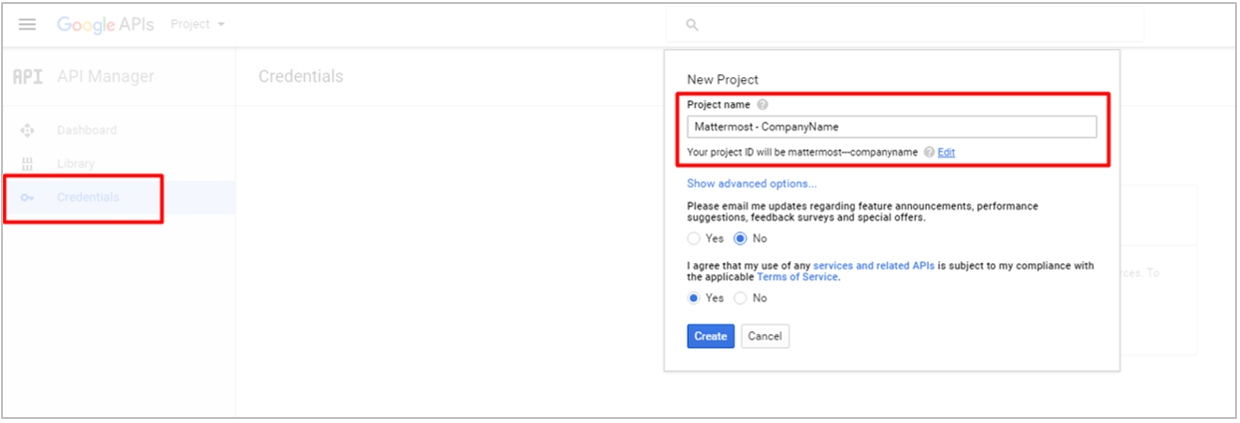 google_1_credentials
2 - In the Dashboard click the option to ENABLE APIS AND SERVICES.
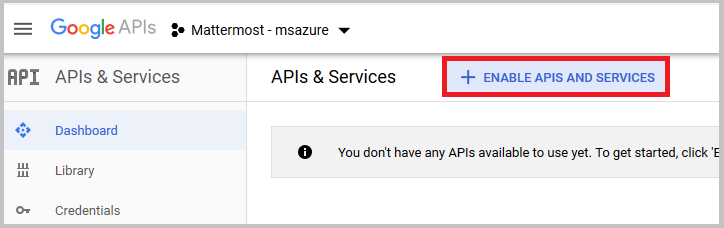 google_enable_api
Once in the API Library, scroll down to Google People API and click Enable in the header. This might take a few minutes to propagate through Google’s systems.
3 - Leave the Google+ API menu to return to the APIs & Services menu. In the left hand sidebar select Credentials, click the OAuth consent screen header and enter “Mattermost” as the Application Name, then click Save.
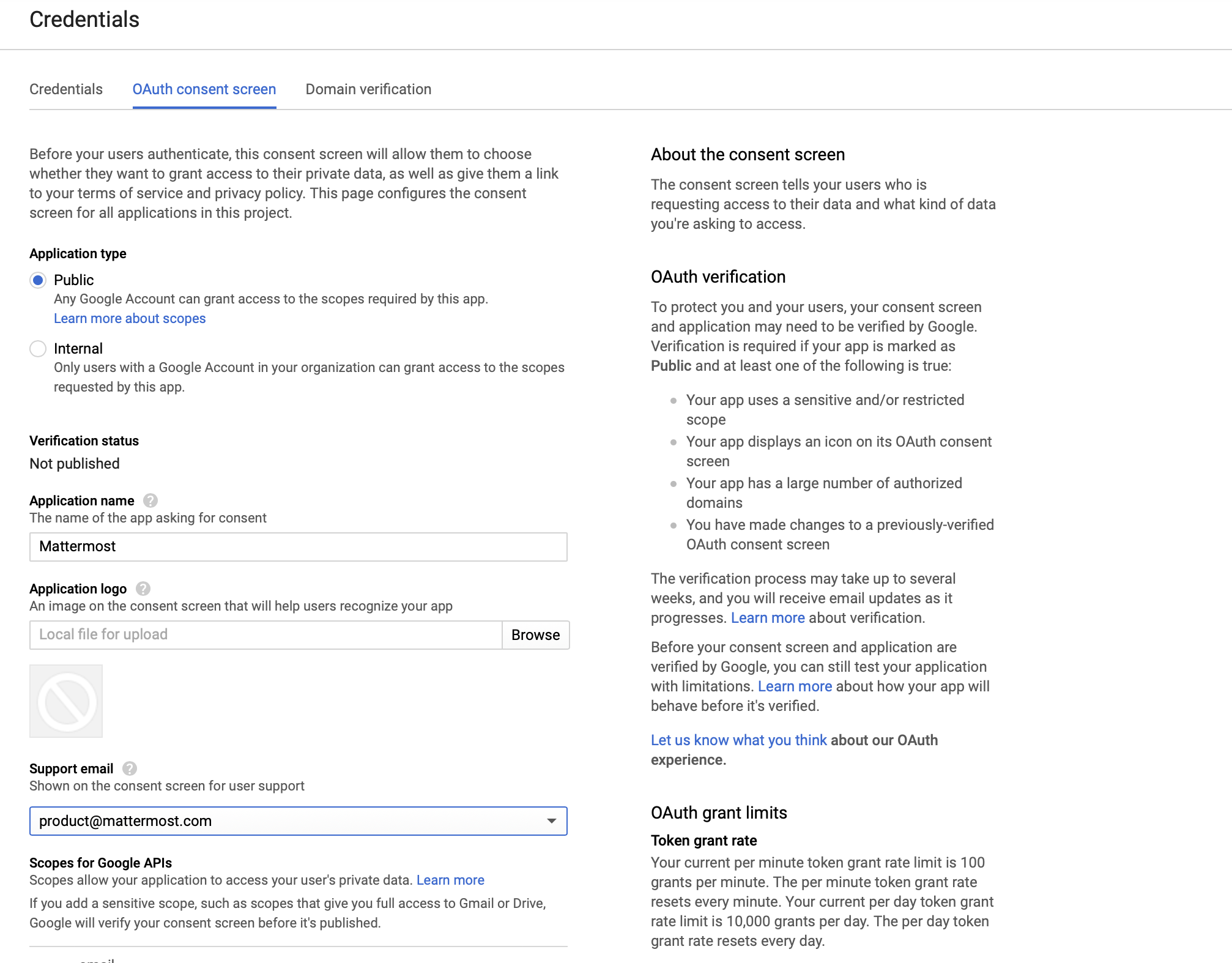 google_3_oauth_consent_screen
Scroll further down to add your Mattermost instance to a list of authorized domains that can access the API. For example, if it is hosted on mattermost.yourdomain.com add yourdomain.com.
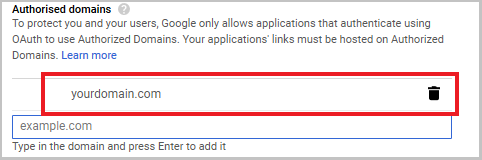 google_authorised_domains
4 - Select Credentials and click Create credentials, then choose OAuth client ID from the drop-down list.
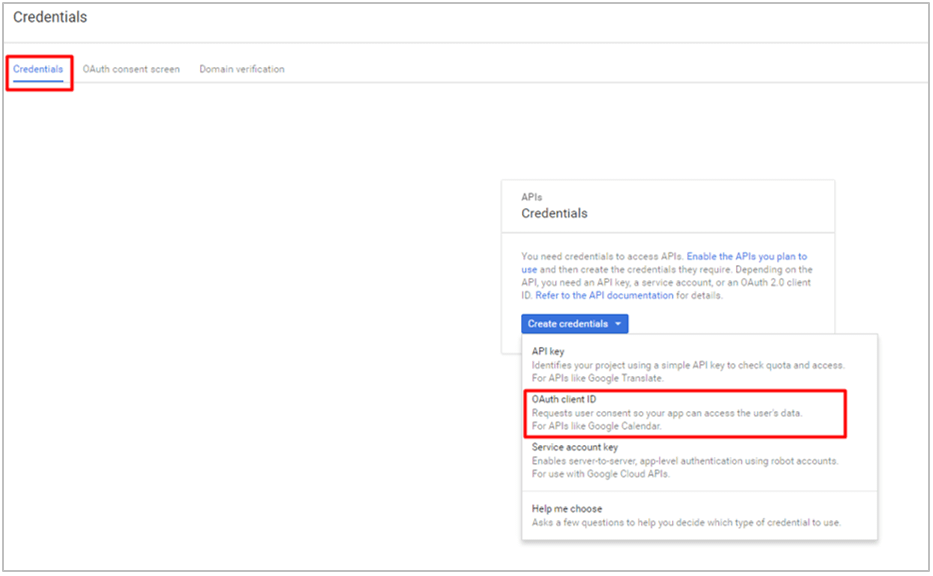 google_3_oauth_client_id
5 - Select Web Application as the Application type, and choose a descriptive Name for the OAuth connection.
Under Restrictions > Authorized redirect URIs, enter your-mattermost-url/signup/google/complete (example: http://localhost:8065/signup/google/complete). Click Create.
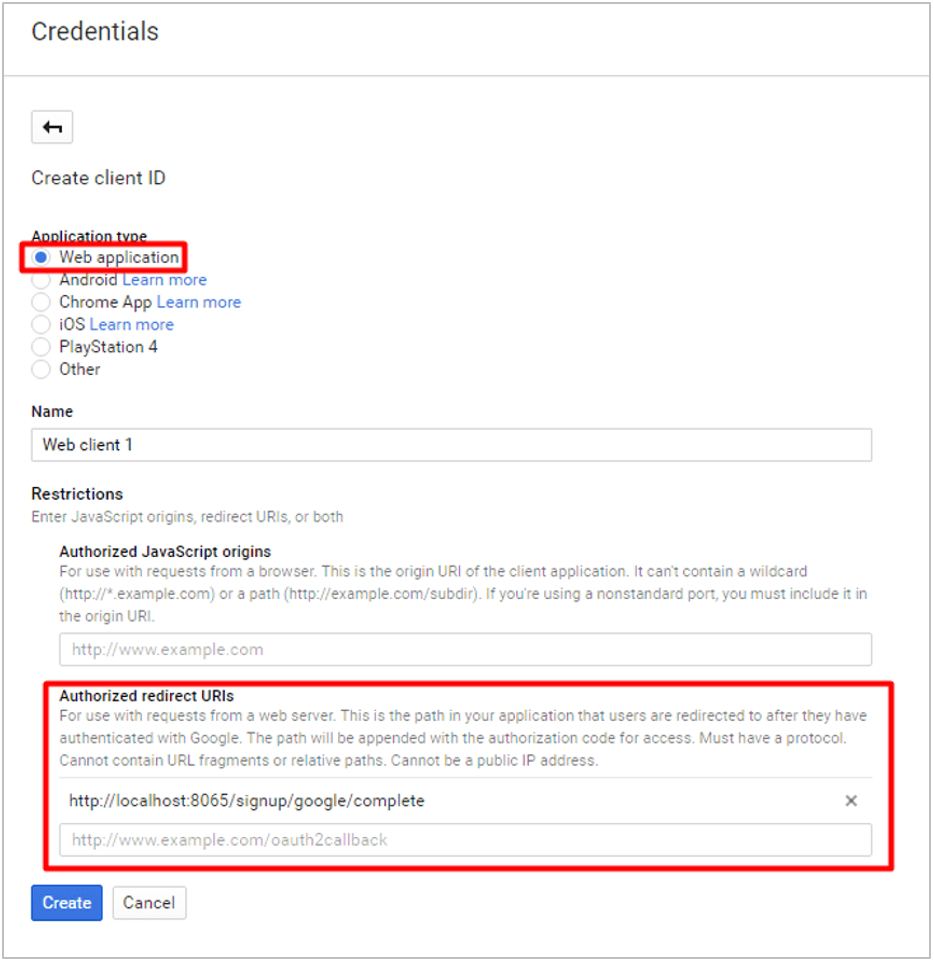 google_4_web_app
6 - Copy the Client ID and Client Secret, which will be used to configure Google SSO for Mattermost.
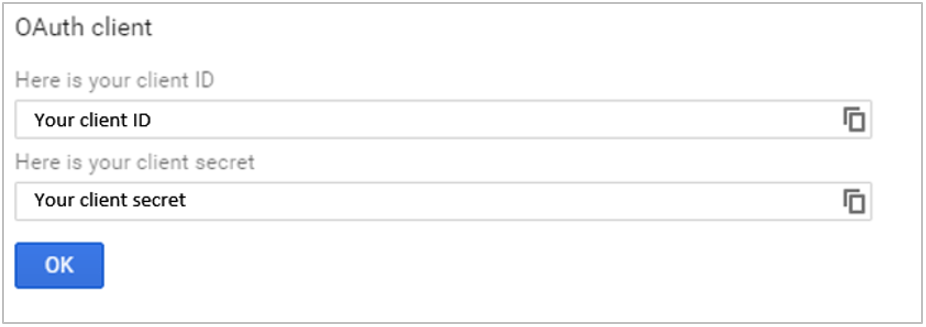 google_5_client_id_secret
7 - In System Console > OAuth 2.0 > Select OAuth 2.0 service provider, choose Google Apps as the service provider and enter Client ID and Client Secret from step 6 in their respective fields.
8 - Restart your Mattermost server to see the changes take effect.
Notes:
- You may also enter Client ID and Client Secret fields from step 6 directly in
GoogleSettingssection ofconfig/config.json. - The following default values in
GoogleSettingssection ofconfig/config.jsonare recommended:Scope:profile emailAuthEndpoint:https://accounts.google.com/o/oauth2/v2/authTokenEndpoint:https://www.googleapis.com/oauth2/v4/tokenUserApiEndpoint:https://people.googleapis.com/v1/people/me?personFields=names,emailAddresses,nicknames,metadata
