Organizzare le conversazioni
Le conversazioni in Mattermost sono cruciali per la produttività e il successo aziendale. Mantenere le informazioni e i messaggi organizzati in canali crea uno spazio di lavoro efficente.
Channel types
I Canali sono usati per organizzare le conversazioni tra argomenti diversi. Eistono tre tipi di canale: Canali Pubblici, Canali Privati, e Messaggi Diretti.
Public channels
Public channels are open to everyone on a team. New team members are automatically added to two Public channels when they sign up: Town Square and Off-Topic.
Private channels
Private channels are for sensitive topics and are only visible to select team members. In Team Edition, any member of a Private channel can add or remove other members from Private channels, but in Enterprise Edition these permissions can be restricted to the Channel Admin and System Admin.
Messaggi Diretti e Messaggi di Gruppo
Direct Messages are conversations between two people. Group Messages are Direct Messages that have conversations among three or more people. Both are visible only to the people involved.
Usa un Messaggio Diretto quando vuoi una conversazioni private con una sola persona. Usa un Messaggio di Gruppo quando desidere avere una conversazione con al massimo altre sette persone. Se vuoi comunicare con più di sette persone, devi creare un Canale Privato.
If your System Admin has allowed it, you can start a Direct Message or a Group Message with people on other teams.
Suggerimento
Check the online status indicator next to names in the Direct Message list. It displays: Online (green checkmark indicates active browser), Away (orange clock indicates browser activity for 5 minutes), Do Not Disturb (red dash indicates disabled desktop and push notifications), and Offline (white circle indicates the Mattermost client is closed).
Managing channels
I Canali possono essere creati, ci si può aggiungere, possono essere rinominati, lasciati e archiviati.
Creating a channel
Create a new Public channel or Private channel by selecting the + symbol next to the Public Channels* or Private Channels header on the left hand navigation. To start a Direct Message thread, select the + symbol next to the Direct Messages bar or select More at the bottom of the list to view team members you can message.
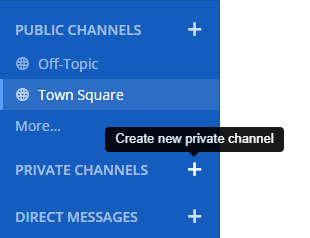
Anyone can create Public channels or Private channels, unless the System Admin has restricted the permissions.
Joining a channel
Select More at the bottom of the Public Channels list to view and search through a list of Public channels you can join. To join a Private channel you need to be added by a member of that channel.
Adding members to a channel
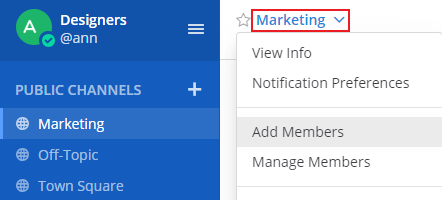
Select the channel name at the top of the center pane to access the drop-down menu, then select Add Members. Any member of a channel can add new members by choosing Add next to a user’s name. Users already added to the channel will not appear in this list.
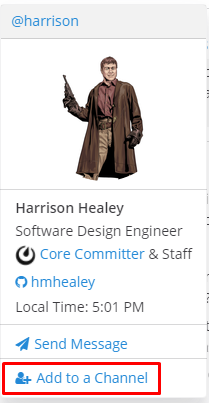
You can also add users to channels within their profile pop-over by selecting Add to a Channel and selecting the channel you want them to join.
Removing members from a channel
Select the channel name at the top of the center pane to access the drop-down menu, then select Manage Members. Any member of a channel can remove other members by choosing Remove next to a user’s name.
Naming a channel
I Canali possono essere identificati in due modi:
- Channel display name: This appears in the Mattermost user interface. Click the channel name at the top of the center pane to access the drop-down menu, then choose Rename Channel. Anyone can rename the channels they belong to, unless the System Admin has restricted the permissions.
- Handle del Canale: è parte dell’URL del canale. Puoi anche modificare l’handle del canale quando lo rinomini un canale, ma la modifica degli handle del canale potrebbe rompere i collegamenti esistenti.
For example, for the following channel, https://community.mattermost.com/core/channels/ux-design:
- Nome visualizzato del canale:
UX Design - Handle del canale:
ux-design
Leaving a channel
Select the channel name at the top of the center pane to access the drop-down menu, then select Leave Channel. Any team member who leaves a Private channel must be re-added by another channel member if they wish to rejoin. Team members will not receive mention notifications from channels of which they are not members.
Archiving a channel
Select the channel name at the top of the center pane to access the drop-down menu, then select Archive Channel. Anyone can archive the Public channels or Private channels they belong to, unless the System Admin has restricted the permissions.
When a channel is archived, it is removed from the user interface, but a copy exists on the server in case it is needed for audit reasons at a later stage. Because of this, the URL of a newly created channel cannot be the same URL name as an archived channel.
In addition to this, when a channel is archived, by default the contents cannot be viewed, shared, or searched. If you want to be able to view or search the channel later, either
- Ask your System Admin to set
ExperimentalViewArchivedChannelstotrueinconfig.jsonto allow users to view, share, and search for content of channels that have been archived; or - Leave the channel open, but post a message in the channel saying it’s considered archived: such as
# This channel is archived.
Unarchiving a channel
Search for the channel if required. Then, open the channel, select the channel name at the top of the center pane to access the drop-down menu, then select Unarchive Channel. Anyone can unarchive the Public channels or Private channels they belonged to when it was archived.
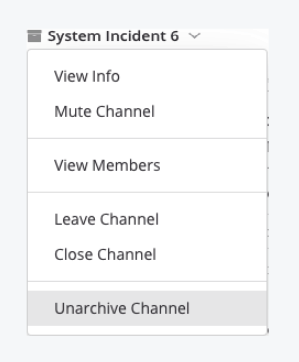
When a channel is unarchived, channel membership and all its content is restored, unless messages and files have been deleted based on the data retention policy.
In addition to this, System Admins can also unarchive channels via the CLI and Team Admins can unarchive them via the API.
Converting public channels to private channels (and vice versa)
Select the channel name at the top of the center pane to access the drop-down menu, then select Convert to Private Channel. Team and System Admins can convert public channels to private channels. Please note that default channels such as Town Square and Off-Topic cannot be converted to private channels.
System Admins can also access this setting in System Console > Channels > Edit (Channel Configuration). Due to security concerns of sharing private channel history, only System Admins can convert private channels to public.
When a channel is converted, its history and membership are preserved. Membership in a private channel is by invitation only. Publicly shared files remain accessible to anyone with the link.
Nota che la conversione di un canale privato in canale pubblico può essere effettuata solo da un Amministrazione di Sistema via Console di Sistema o via comandi CLI.
Favoriting a channel
Favorite channels are a great way to organize your sidebar by choosing which channels, private channels, and Direct Messages are most important to you.
To mark a channel as a favorite, open the channel:
On desktop: At the top of the page, select on the star icon next to the channel name
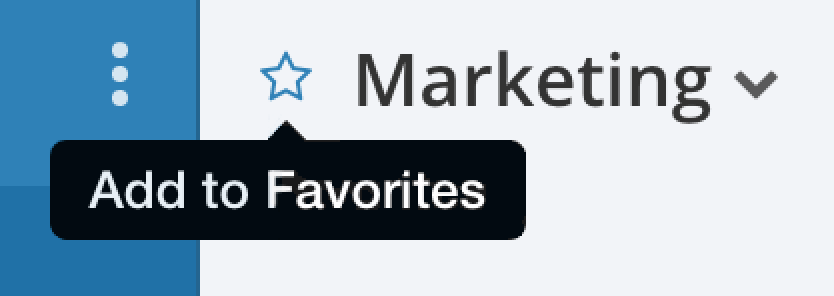
This will add the channel to a Favorites list at the top of the sidebar, so it’s easy to access. To remove a channel from the Favorites list, select the star again.
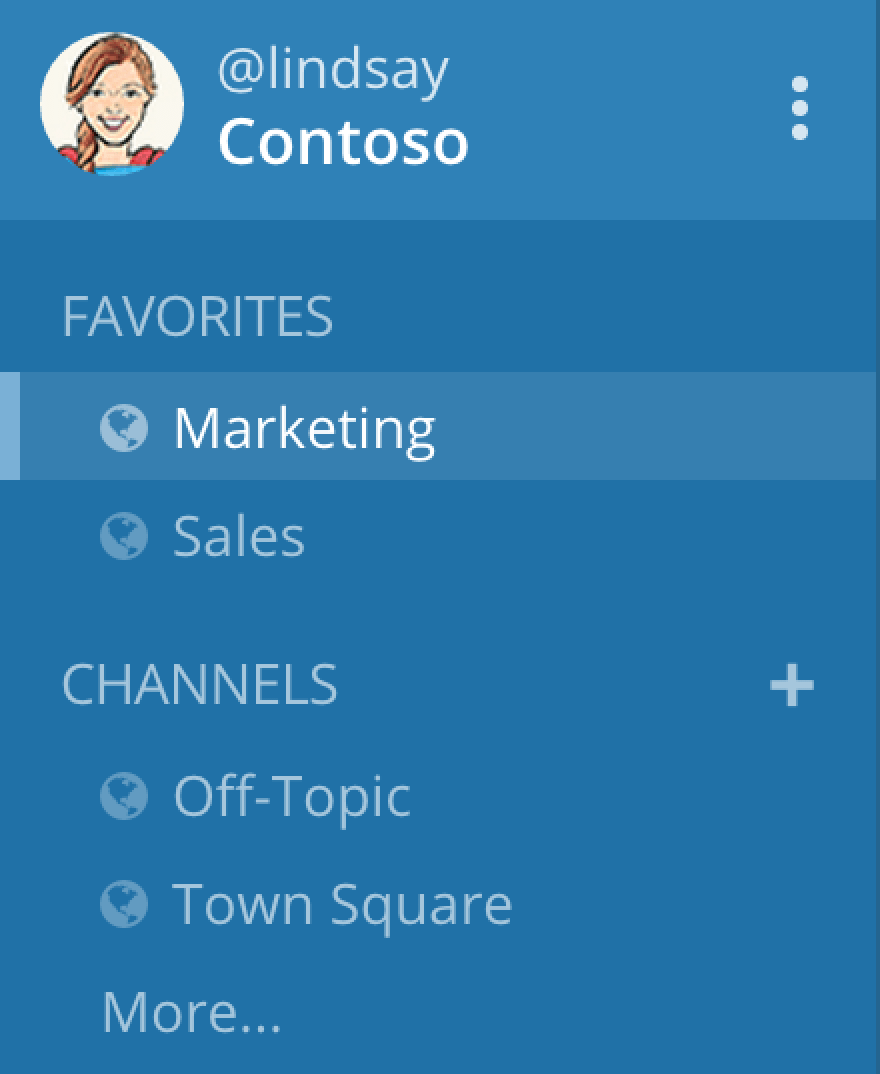
On mobile: Open the dropdown list by the channel name, and select Favorite. To remove a channel from the Favorites list, select Favorite again.
Experimental: Channel Organization Features
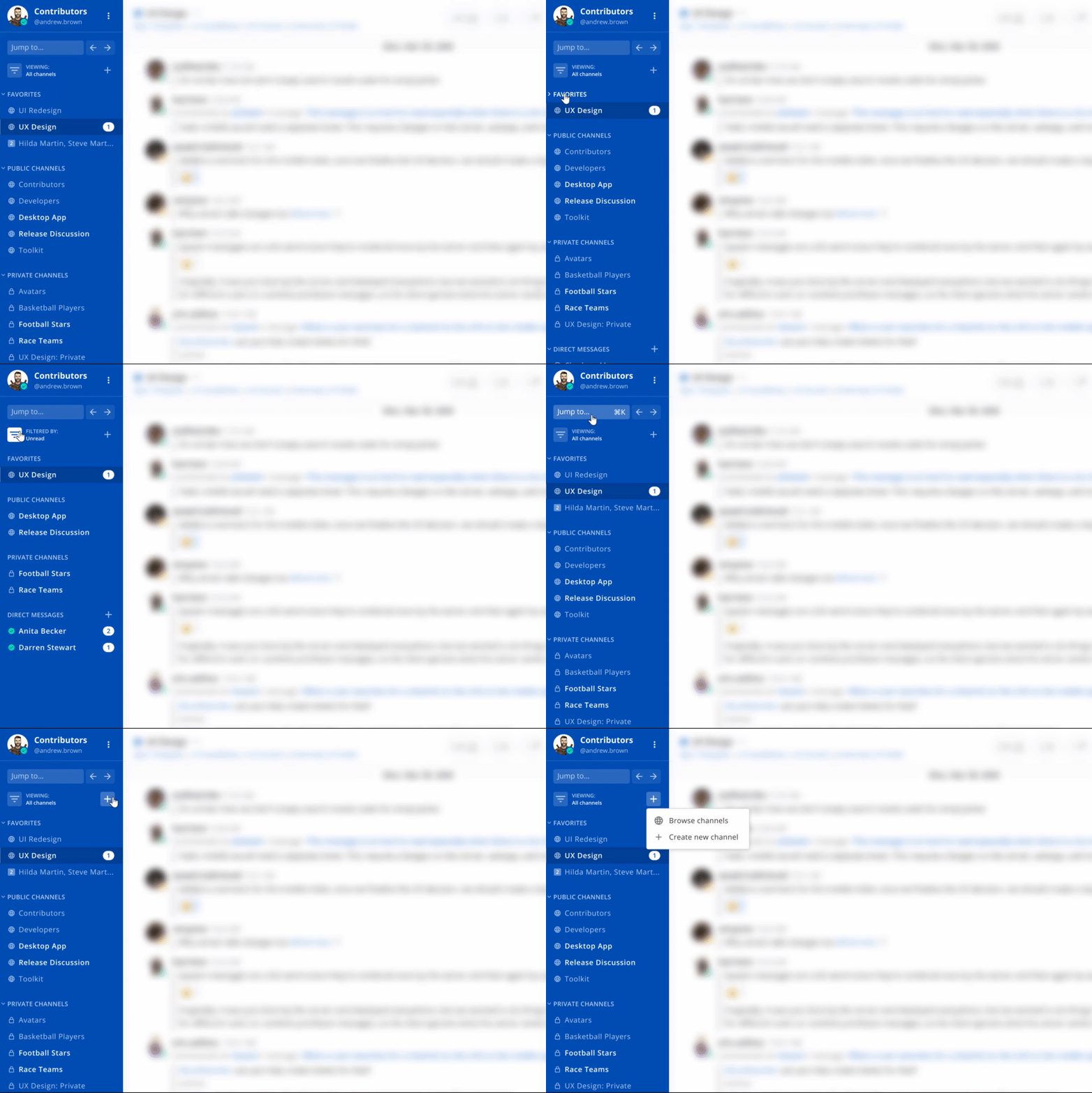
Join us in testing an experimental feature set offering additional functionality for managing channels in your sidebar. The features can be enabled using an opt-in config setting configured by a System Admin: ExperimentalChannelSidebar.
When configured by the System Admin, users can enable the features in Account Settings > Sidebar > Experimental Sidebar Features. Features include:
Collapsible categories: Collapse categories in the sidebar (e.g., favorites, public channels, private channels, and direct messages) to reduce unnecessary scrolling. When collapsed, only unread channels will appear in the corresponding category.
Unread filter: Catch up on all your unread channels with a one-click unreads filter. When enabled, you’ll see only unread channels in the sidebar.
History arrows: Navigate recently viewed channels more easily with arrows to move back and forth through channel history. Available in the Desktop app only.
Learn more about upcoming additions to this feature set and give us feedback here.